Is Your iPad Crawling? Unlock Its Hidden Speed Today!
Is your iPad lagging when you need it most? Discover three simple settings you can adjust today to significantly boost your iPad's speed and reclaim your workflow, from Procreate to Safari.
Editorial Note
Reviewed and analysis by ScoRpii Tech Editorial Team.
In this article
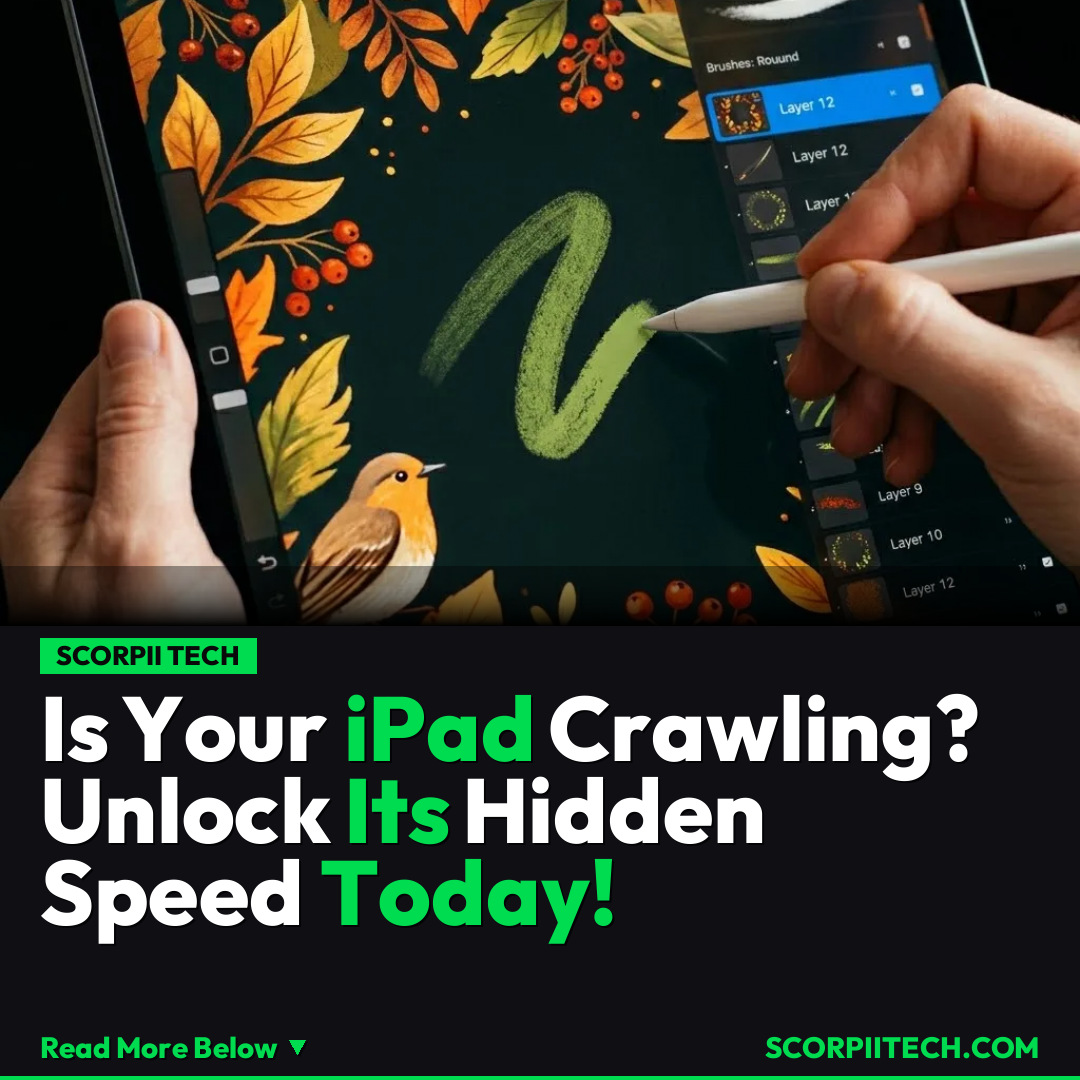
Nothing's more annoying than trying to launch Procreate on your iPad and waiting a whole minute for it to load, or writing some school notes with your Apple Pencil but getting delayed responses. You know that frustration, right? A slow iPad doesn't just annoy you; it seriously gets in the way of your workflow, creativity, and productivity.
Key Details
You've got a powerful Apple device in your hands, but even the best tech can get bogged down over time. Luckily, you don't need to be a tech wizard to bring back your iPad's zip. There are three straightforward settings you can tweak right now that make a huge difference in iPad speed optimization. These aren't just minor adjustments; they target common culprits of sluggish performance, helping your iPad feel responsive again.
Need fast, secure, and affordable hosting for your next website or PHP application? We recommend Hostinger Managed Hosting. Get premium speeds, a free domain, and 24/7 expert support.
First up, consider Offloading Unused Apps. This handy feature lets you free up valuable internal storage, potentially reclaiming over 1GB of available space without actually deleting your app data. When an app is offloaded, its document and data remain, ready to be re-downloaded the next time you tap its icon. This is especially useful if your iPad is running an older iOS version and struggling with available memory. Secondly, don't underestimate the power of Low Power Mode. While primarily designed to extend battery life, it achieves this by reducing background activity, visual effects, and often, your screen's refresh rate (from 120Hz to 60Hz on compatible models). This reduction in active processes directly translates to less strain on your iPad's processor, leading to a snappier feel, even when you're not trying to save power.
Finally, your web browser might be a hidden speed thief. Over time, both Safari and Chrome accumulate vast amounts of cache and website data. This data, meant to speed up future visits, can paradoxically slow down your browsing experience and overall iPad performance, especially if you're frequently on a 5G connection. Clearing this browser cache and website data is like giving your iPad a digital detox, ensuring your web browsing is fluid and responsive.
Why This Matters
Your iPad isn't just a gadget; it's a critical tool for your work, your studies, and your creative outlets. A slow iPad can seriously get in the way of your workflow, turning simple tasks into frustrating battles. Imagine trying to sketch an idea in Procreate, only for your Apple Pencil to lag, or desperately needing to find information online, but Safari keeps freezing. These delays don't just waste your time; they break your concentration and diminish your enjoyment of a device you've invested in.
You rely on your iPad to be immediate and intuitive. Whether you're juggling school notes, collaborating on a project, or simply unwinding with a game, you expect a smooth experience. When your device struggles with basic functions like launching apps or maintaining a steady 120Hz refresh rate (if applicable), it undermines its core purpose. Optimizing your iPad's speed ensures it remains the powerful, versatile companion you need, allowing you to focus on what matters most without technological roadblocks.
The Bottom Line
You don't have to live with a sluggish iPad. These three simple adjustments—offloading unused apps, enabling Low Power Mode, and regularly clearing your browser's cache—can dramatically improve your device's responsiveness. Your iPad is designed to enhance your life, not hinder it. Take a few moments today to implement these settings, and you'll likely feel a noticeable boost in performance, reclaiming the smooth, efficient experience you deserve.
Originally reported by
BGRWhat did you think?



Stay Updated
Get the latest tech news delivered to your reader.