Why Your Apple Watch Sensor Glows Red (And How To Stop It)
If your Apple Watch sensor is glowing red, it's measuring your blood oxygen. Learn why it happens and how to easily turn off this feature when using Sleep Focus or Theater Mode.
Editorial Note
Reviewed and analysis by ScoRpii Tech Editorial Team.
In this article
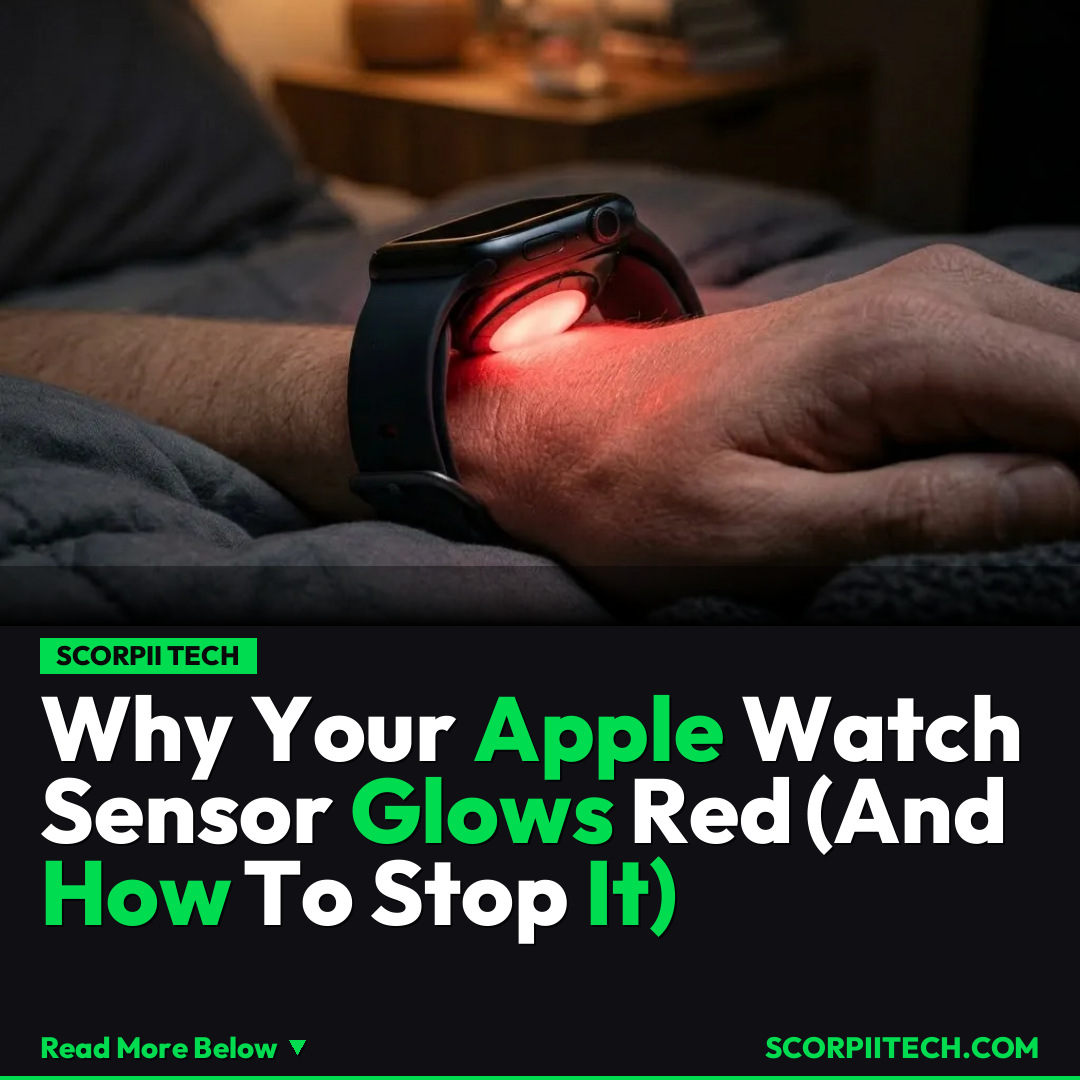
You’ve probably been there: settling down for a quiet night, or maybe trying to enjoy a film, when suddenly a subtle, yet unmistakable, red glow emanates from your wrist. Your Apple Watch, usually a discreet companion, is suddenly putting on a tiny light show. If your Apple Watch sensor starts glowing red, specifically the part that touches your skin, you might wonder if something’s wrong. But don’t worry, you’re not witnessing a malfunction; you’re just seeing your device at work.
Key Details
That crimson glimmer isn’t a warning sign, but rather your Apple Watch performing one of its important health monitoring functions: measuring your blood oxygen level. This isn’t a constant process; it specifically kicks into action when certain modes are enabled on your device. For many users, this red light becomes noticeable precisely when they activate Sleep Focus or engage Theater Mode – situations where ambient light is generally low, making the sensor’s emission particularly prominent.
Need fast, secure, and affordable hosting for your next website or PHP application? We recommend Hostinger Managed Hosting. Get premium speeds, a free domain, and 24/7 expert support.
It’s an interesting design choice, as one observer humorously noted, “The irony of Apple making the light so noticeable in situations when you don’t want to see it is palpable.” You're trying to minimize distractions, and suddenly your wrist is subtly pulsating with light. This functionality is built into your Apple Watch to provide you with insights into your overall wellness, tracking a vital metric while you sleep or during other quiet periods.
If you find this red glow distracting, especially during those moments when you least want it, you have full control. You can easily adjust this behavior directly on your Apple Watch. Just navigate to the Settings app, scroll down and select 'Blood Oxygen'. Within this section, you'll find toggles specifically for 'In Sleep Focus' and/or 'In Theater Mode'. By simply switching these off, you can prevent the sensor from emitting its light during those specific times, giving you back control over your viewing or sleeping environment.
Why This Matters
Understanding what this red light signifies can save you a moment of confusion or even concern. Your Apple Watch is designed to be a health and wellness tool, and its ability to measure blood oxygen is a key part of that. Knowing that the glow is simply a feature doing its job provides peace of mind. Furthermore, the option to disable it during Sleep Focus or Theater Mode is a crucial user-experience detail. It empowers you to customize your device's behavior to better suit your lifestyle, ensuring that your tech enhances, rather than disrupts, your quiet moments.
In an increasingly connected world, where our devices are always on, the ability to control notifications and ambient functions like sensor lights becomes incredibly valuable. You’re not just passively using technology; you’re actively shaping its interaction with your personal space and time. This small piece of information means you don't have to tolerate an unexpected glow, allowing you to fully immerse yourself in a movie or achieve undisturbed sleep without your Apple Watch inadvertently drawing your attention.
The Bottom Line
So, the next time your Apple Watch sensor starts glowing red, you’ll know exactly what it means: a silent, diligent measurement of your blood oxygen levels. And if that glow isn't part of your ideal ambiance during Sleep Focus or Theater Mode, you now have the power to switch it off with a few taps in your settings. Your Apple Watch is a powerful health tool, and understanding its nuances ensures you can leverage its features exactly how you want, maintaining your peace and privacy on April 14, 2026, and beyond.
Originally reported by
BGRWhat did you think?



Stay Updated
Get the latest tech news delivered to your reader.