Why Your PS5 HDR Looks Washed Out (And How To Fix It)
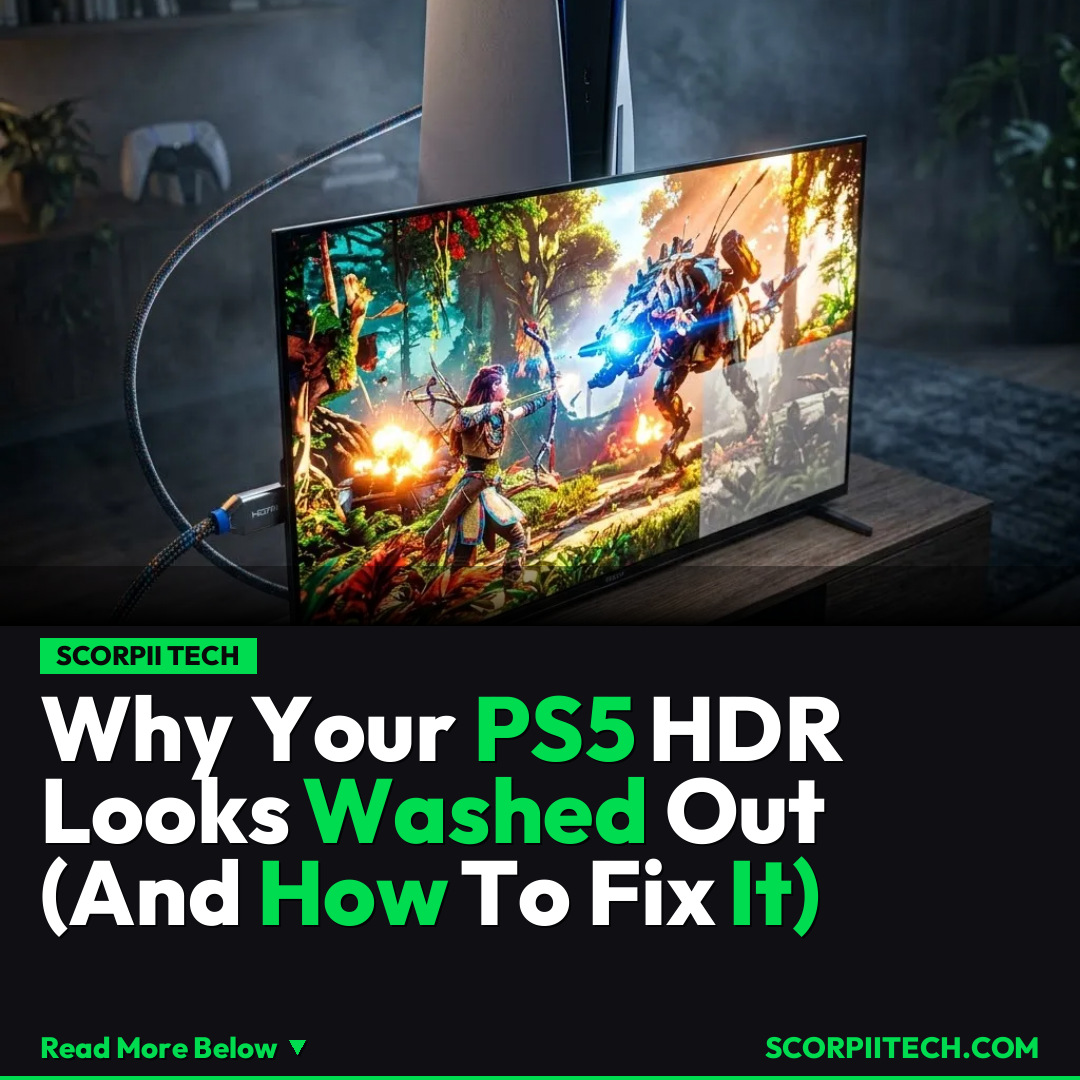
You're seeing washed-out HDR on your PS5? Don't let dull visuals ruin your gaming. Discover the common causes and simple fixes to optimize your PlayStation 5's HDR settings and bring your games to life. Learn how to troubleshoot your HDMI setup and a
Editorial Note
Reviewed and analysis by ScoRpii Tech Editorial Team.
In this article
You just invested in the cutting-edge PlayStation 5, expecting breathtaking visuals, but instead, your games look strangely faded or dull. If your PS5’s HDR output appears washed out, you're not alone in this frustrating experience. This common issue can dampen your immersive gaming, making vibrant worlds seem muted and lifeless. Thankfully, clear, actionable steps exist to reclaim the stunning visuals you deserve from your console and TV.
Key Details
The primary culprit behind washed-out HDR on your PlayStation 5 often boils down to improper video signal handling between your console and TV. You might assume all HDMI cables are created equal, but for optimal HDR performance, you absolutely need a High Speed HDMI cable. If you’re using an older cable, or one that wasn't specifically designed for high-bandwidth data, it simply won't be able to transmit the full fidelity of the HDR signal, leaving you with those disappointing, muted colors. Start by ensuring your HDMI cable is up to par and securely connected to both your PS5 and a compatible HDMI 2.0 port on your TV.
Deploy your next full-stack application effortlessly. Get $200 in free DigitalOcean credits to host your Laravel or Python APIs.
Once your physical connections are sorted, your next stop is within the PlayStation 5's own settings. Navigate to the Screen and Video menu, then select Video Output, and finally, HDR. While the PS5 attempts to auto-detect the best HDR settings for your TV, sometimes a manual tweak is necessary. Pay close attention to the RGB Range setting. You’ll typically have options for Limited or Full. The correct setting often depends on your specific TV, but trying both can reveal which one eliminates the washed-out look. Many users find switching this setting resolves the issue immediately, bringing back the vibrant contrast and rich colors you expect from HDR.
Beyond the PS5's internal settings, your TV's configuration plays a significant role. Ensure that the HDMI port your PS5 is connected to is enabled for enhanced HDMI signals or 'deep color' within your TV's settings. Some TVs might default to a lower-bandwidth mode on certain ports, or even require a specific HDMI port (like an HDMI Arc port if you're using a sound system) for optimal HDR. Consult your TV's manual to confirm the best practices for external device HDR input. A robust HDMI 2.0 connection is paramount for HDR data transfer, so double-check those ports and their respective settings.
Why This Matters
Why does this seemingly technical issue matter so much to your gaming experience? Because HDR is designed to be a game-changer, not a frustration. When functioning correctly, High Dynamic Range (HDR) significantly expands the contrast ratio and color palette of your games, delivering brighter whites, deeper blacks, and a spectrum of colors far beyond what standard dynamic range (SDR) can achieve. Washed-out images don't just look 'off'; they actively undermine the artistic vision of game developers and dilute the immersive worlds they create for you. You bought a PlayStation 5 and likely an HDR-capable TV to experience these advancements, and settling for a faded picture means you're missing out on a core part of that premium investment.
Beyond aesthetics, the accuracy of colors and contrast can impact gameplay itself, especially in darker scenes where discerning details is crucial. Fixing this issue isn't just about pretty pictures; it's about ensuring you get the full, intended experience. It's about unlocking the true visual potential of your PS5, transforming your gameplay from merely 'okay' to genuinely breathtaking. By taking these steps, you empower yourself to optimize your setup, ensuring every pixel contributes to the immersive, high-fidelity gaming adventure you expect.
The Bottom Line
In conclusion, don't let a washed-out picture diminish your PlayStation 5 gaming. You now have the essential knowledge to troubleshoot and optimize your HDR setup. Start by upgrading to a High Speed HDMI cable if needed, then meticulously review your PS5's Screen and Video > Video Output > HDR settings, particularly experimenting with the RGB Range between Limited and Full. Finally, confirm your TV's HDMI port settings are configured for enhanced HDR. Taking these simple steps will ensure you experience your favorite PS5 titles in the stunning, vibrant HDR they were designed for, elevating your gaming to its true potential.
Originally reported by
BGRWhat did you think?



Stay Updated
Get the latest tech news delivered to your reader.