Your Pixel Phone: The Secret Button You Didn't Know You Had
Discover a game-changing shortcut hidden on the back of your Google Pixel phone. Learn how to enable and customize the back-tap gesture to launch apps, take photos, and more, making your daily tech life simpler.
Editorial Note
Reviewed and analysis by ScoRpii Tech Editorial Team.
In this article
“Tapping on your screen to get around your phone is overrated,” you might think as you navigate menus and apps. While you're used to the familiar click of your power and volume buttons, your Google Pixel is actually hiding another incredibly useful, assignable button. It's not on the side, or the front – it’s right on the back of your phone, waiting to transform how you interact with your device.
Key Details
You're already familiar with what your Pixel's physical buttons can do. A quick double press of the power button, for example, can instantly launch your Camera app or bring up your Wallet for a speedy transaction. Hold that same power button down, and you can engage with Google Gemini, your personal AI assistant, or simply power down your device. Your volume buttons are mainly for audio control, but they also serve a dual purpose: pressing volume up and power together mutes your phone, and within the Camera app, they let you snap a photo or zoom in and out.
Need fast, secure, and affordable hosting for your next website or PHP application? We recommend Hostinger Managed Hosting. Get premium speeds, a free domain, and 24/7 expert support.
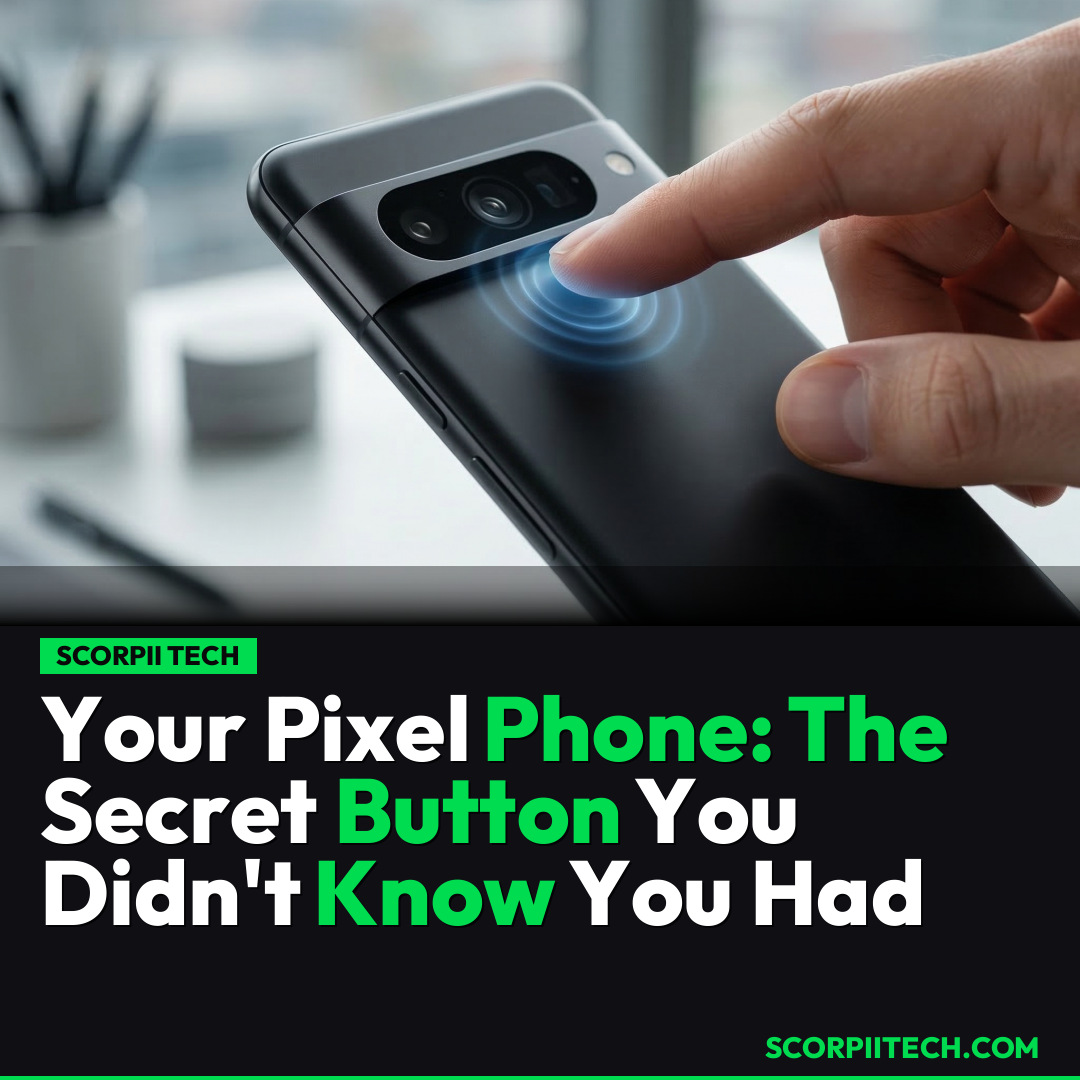
But other than these, your Google Pixel is actually hiding another nifty button that you can assign shortcuts to — right on the back of your phone. This "Quick Tap" feature lets you perform a custom action with just two taps on the back of your device. To enable this game-changing gesture, you'll need to dive into your Pixel's settings. Once you choose "Open app," tap the gear icon to select your preferred application. What's even better is that some apps offer more than one action; you can view these by pressing the gear icon next to the chosen app. For instance, if you select Camera, you can choose between opening the app, taking a video directly, or even snapping a selfie. Once set, simply tap twice on the back of your phone, somewhere in the middle, and it should automatically perform the action you've configured. If you prefer a more deliberate interaction, you can easily turn on "Require stronger taps" from the Quick Tap menu for added precision.
Why This Matters
In an increasingly busy world, every second saved and every step streamlined matters. This hidden back-tap gesture isn't just a quirky trick; it's a powerful tool for enhancing your daily mobile experience. Imagine needing to quickly capture a fleeting moment – instead of unlocking your phone, swiping for the camera app, and then tapping the shutter, you could simply tap the back of your Pixel twice to instantly take a video or a selfie. This level of customization allows your phone to adapt to your habits and needs, rather than the other way around.
This feature allows you to personalize your Pixel beyond standard app icons and widgets. It turns a passive part of your phone's design into an active, responsive input. Whether you're a multi-tasker who needs quick access to Google Gemini, or someone who frequently uses their phone for payments, assigning a back-tap shortcut dramatically cuts down on navigation time. It pushes the boundary of what a smartphone button can be, moving away from rigid physical controls to dynamic, software-defined gestures that feel incredibly intuitive once mastered. You're effectively gaining an extra, customizable button without adding any bulk to your device.
The Bottom Line
So, if you own a Google Pixel, you're sitting on a secret weapon for enhanced productivity and convenience. Stop overlooking this incredibly useful feature tucked away in your settings. Take a few moments today to explore the Quick Tap options and assign a shortcut that genuinely benefits your workflow. By customizing your Pixel with this back-tap gesture, you're not just saving taps; you're making your smartphone experience more intuitive, efficient, and uniquely yours. Go unlock the full potential of your device – your thumbs will thank you.
Originally reported by
BGRWhat did you think?



Stay Updated
Get the latest tech news delivered to your reader.