AirPods Tracking You? What Your iPhone Alert Really Means
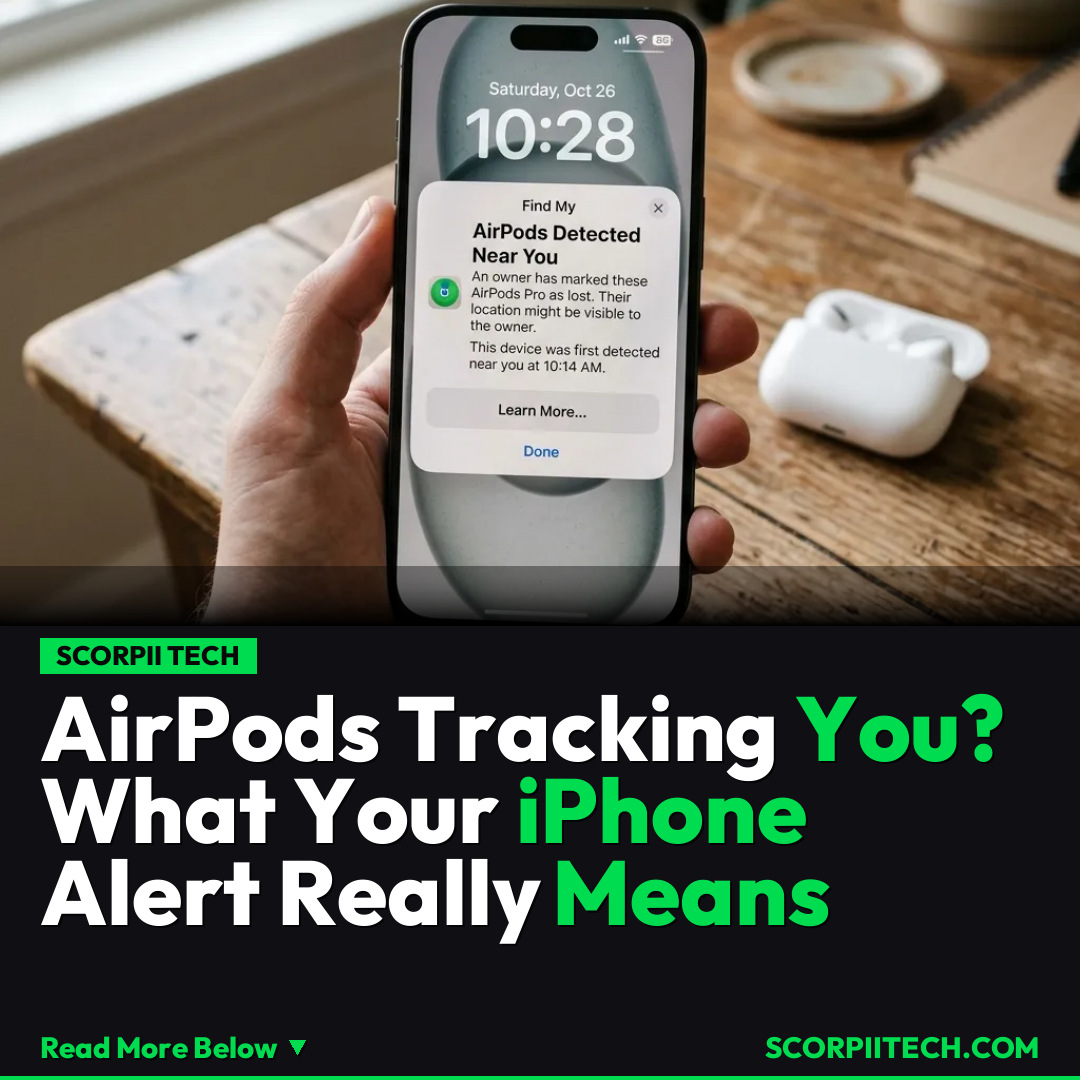
You've seen the 'AirPods detected near you' alert on your iPhone or iPad. Discover what this Apple tracking notification truly signifies, how to manage your privacy settings, and why you can likely relax about secret trackers.
Editorial Note
Reviewed and analysis by ScoRpii Tech Editorial Team.
In this article
You glance down at your iPhone, only to see a jarring notification: 'AirPods Detected Near You.' Your heart might skip a beat, picturing a shadowy figure tracking your every move. Is someone really using discreet Apple tech to spy on you? You can probably breathe easy — most likely, it's just a quirk of your own Apple product, not a nefarious plot.
Key Details
When your iPhone or iPad flashes an alert about unknown AirPods detected near you, it’s understandable to feel a jolt of concern. This advanced notification is part of Apple's powerful Find My network, designed to help you locate lost items and, crucially, to alert you to potentially unwanted tracking. While the controversy over someone potentially using the Find My network to track your location is real, in most cases, this specific alert is simply your device recognizing one of your own Find My-compatible items that it briefly 'lost track' of or encountered in an unexpected place.
Need fast, secure, and affordable hosting for your next website or PHP application? We recommend Hostinger Managed Hosting. Get premium speeds, a free domain, and 24/7 expert support.
This alert system isn't limited to just AirPods. You might receive similar notifications for other third-party accessories that utilize Apple’s Find My network, such as Ridge Wallet Tracker Cards or the Satechi FindAll Glasses Case. The system's primary function is to notify you if an unknown device that could be used for tracking is moving with you over time. This functionality relies on your iPhone or iPad running iOS 17.5 and iPadOS 17.5 or later, with Bluetooth enabled and Airplane Mode off.
If you want to ensure you're receiving these critical privacy alerts, you can easily configure them. Head to the Settings menu on your iPhone or iPad. Select Privacy & Security, then Location Services, and make sure that option is toggled on. Next, scroll down, tap on System Services, then toggle Significant Locations so it notifies you when you arrive at important destinations, like your home or work. Finally, go back to the Settings menu, tap on Notifications, then Tracking Notifications, and turn on Allow Notifications. If you ever have further questions, Apple Support is an excellent resource.
Why This Matters
Understanding these alerts is crucial in today’s connected world. The possibility that someone could potentially use the Find My network to track your location is a genuine concern, and Apple has implemented these features precisely to counteract that threat. While your first instinct might be panic, knowing that these alerts often originate from your own items helps you avoid unnecessary alarm while still appreciating the robust security measures Apple has put in place for your peace of mind.
These notifications empower you to distinguish between a minor technical hiccup with your personal Apple ecosystem and a legitimate privacy concern. By being informed about how the Find My network operates and how to manage your privacy settings, you’re better equipped to maintain control over your location data and ensure your personal security.
The Bottom Line
So, the next time your iPhone warns you about an unknown AirPod nearby, take a breath. It’s highly probable that it's just your own gear. Take a moment to check your settings and understand what these alerts signify. You're not being spied on; you're just experiencing Apple’s powerful, albeit sometimes overzealous, privacy features working exactly as intended to keep you safe.
Originally reported by
BGRWhat did you think?



Stay Updated
Get the latest tech news delivered to your reader.